Most photo software assumes the cloud is the point. Upload everything, and in exchange get access from any device, automatic sync, and a company handling the infrastructure so you don't have to think about it. That is a good trade for a rolling camera roll. It is a less obvious trade for a family archive of decades-old photos that already lives on a drive you own, and "we don't upload your photos" is a design decision to evaluate on its merits, not an apology for a missing feature.
The case for keeping it local
Reasons local-first suits this job:
- Privacy. Nothing leaves your drive. There's no server somewhere with a copy of forty years of your family's photos, no third party's data-handling practices to trust, and no cloud account holding your photos to be breached. The only copy that exists is the one you already control.
- No ongoing cost as storage grows. Cloud photo storage is priced per gigabyte, and a multi-decade family archive is a lot of gigabytes. A local tool that reads files already on a drive you bought once has no metered storage bill that climbs every year the archive grows.
- No dependency on a company staying in business. A cloud service can raise prices, change its terms, get acquired, or shut down. None of that touches files that were never uploaded to begin with, the archive keeps working as it did on day one, whatever happens to the company that made the software.
- Works with no internet connection. A drive plugged into a Mac with no network still works completely. An archive you look at occasionally, at the holidays or a reunion, shouldn't depend on connectivity.
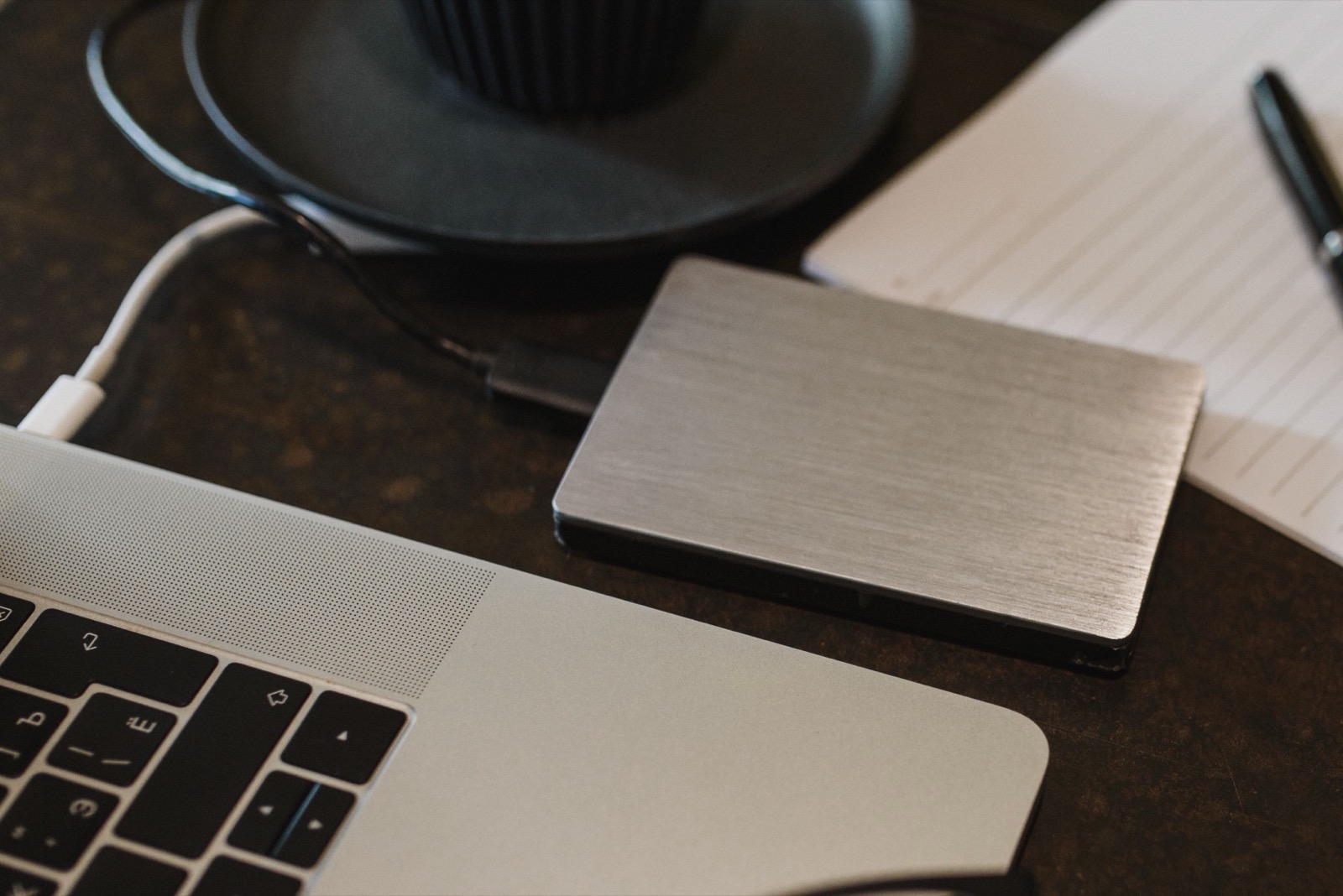
Cloud service vs. local, read-in-place
Side by side, the architectural difference is simple:
Cloud photo service
Files live on the provider's servers. The provider (and anyone they're compelled or choose to share with) can technically access them. Cost is an ongoing subscription that scales with storage used. Requires an internet connection to view or sync.
Local, read-in-place
Files stay on your own drive, exactly where they already were. No one but you has access, because nothing was ever sent anywhere. Cost is whatever you paid for the drive and the software, once. Works completely offline.
Neither model is better in general; they suit different jobs. A cloud service fits a rolling camera roll you want synced to every device the moment you take a photo. A local tool fits an archive that already exists on a drive, where "access from anywhere, instantly" matters less than still working the same in twenty years with no copy outside the family.
The tradeoffs
A local-first tool gives up two things:
All Our Years isn't built for automatic phone-to-cloud backup. Apple Photos and Google Photos do that well. It is built to organize an archive that already sits in folders on a drive.
Sharing without a cloud sync
"Local" doesn't mean "no one else can ever see these photos." It means sharing is a deliberate, manual act instead of an always-on background sync. Export a folder for a specific event, send someone a copy, hand a relative a duplicate of the drive at a family gathering. That is less automatic than a cloud service's instant sync, and many families accept the trade: you decide what leaves your drive and when, instead of everything syncing everywhere by default. For families who want to share more easily, All Our Years offers an optional, encrypted sharing service called Family Circle ($49/year). It is separate from the app and not required.
How this shows up in All Our Years specifically
All Our Years reads an existing folder of photos on a drive you already own, in place. It never moves, renames, uploads, or modifies the original files, and it has no cloud component. The app needs no account (the optional Family Circle sharing service is separate and paid). It is free to try with no time limit and $59 once to unlock, because there are no ongoing server costs for your archive. The tradeoff is the one above: no automatic sync to your phone away from home, and it's Mac only. If either is a dealbreaker for your household, our software guide covers the alternatives, including the Mac-only question. If you haven't yet consolidated a scattered archive onto one drive in the first place, start with our step-by-step organizing guide.
FAQ
Is local-first photo software less convenient?
In one way, yes: you don't get automatic phone access when you're away from the drive, as a cloud service gives you. In exchange, nothing about the archive depends on a company staying in business, keeping its pricing the same, or having an internet connection at all.
Can I still share photos with family if everything is local?
Yes, just manually rather than automatically. Export a folder, send it, or hand someone a copy of the drive. What you lose is the always-on sync of a cloud service; what you keep is control over exactly what leaves your drive and when.
Does local mean no backup?
No, they are different things. Local-first means the organizing software doesn't upload anything. It says nothing about how many physical copies of your files exist. You still need a real backup, ideally following the 3-2-1 rule, as with any other photo software.
Why would software NOT use the cloud?
For an archive of decades-old family photos, the cloud's selling points (access anywhere, automatic sync) matter less than its costs: a subscription that scales with storage, a company that has to keep existing and keep its terms, and files that live somewhere you don't fully control. Local-first trades a convenience you may not need for independence you probably do.
Does All Our Years upload my photos anywhere?
No. It reads a folder of photos on a drive you already own, in place, and never uploads, moves, or renames the originals. There is no cloud component, and the app needs no account. Family Circle, an optional paid sharing service, is separate.