Whoever ends up responsible for a family's photo archive eventually asks where it should live. There are three real answers: a plain external drive, a NAS device, and a cloud storage service. Each is a sensible choice for some families and a poor one for others, so this comparison ends with "it depends on your household," not a single winner.
This post is for the deciding stage. It covers what each option costs in money and effort, and what happens when something goes wrong with it.
The three options
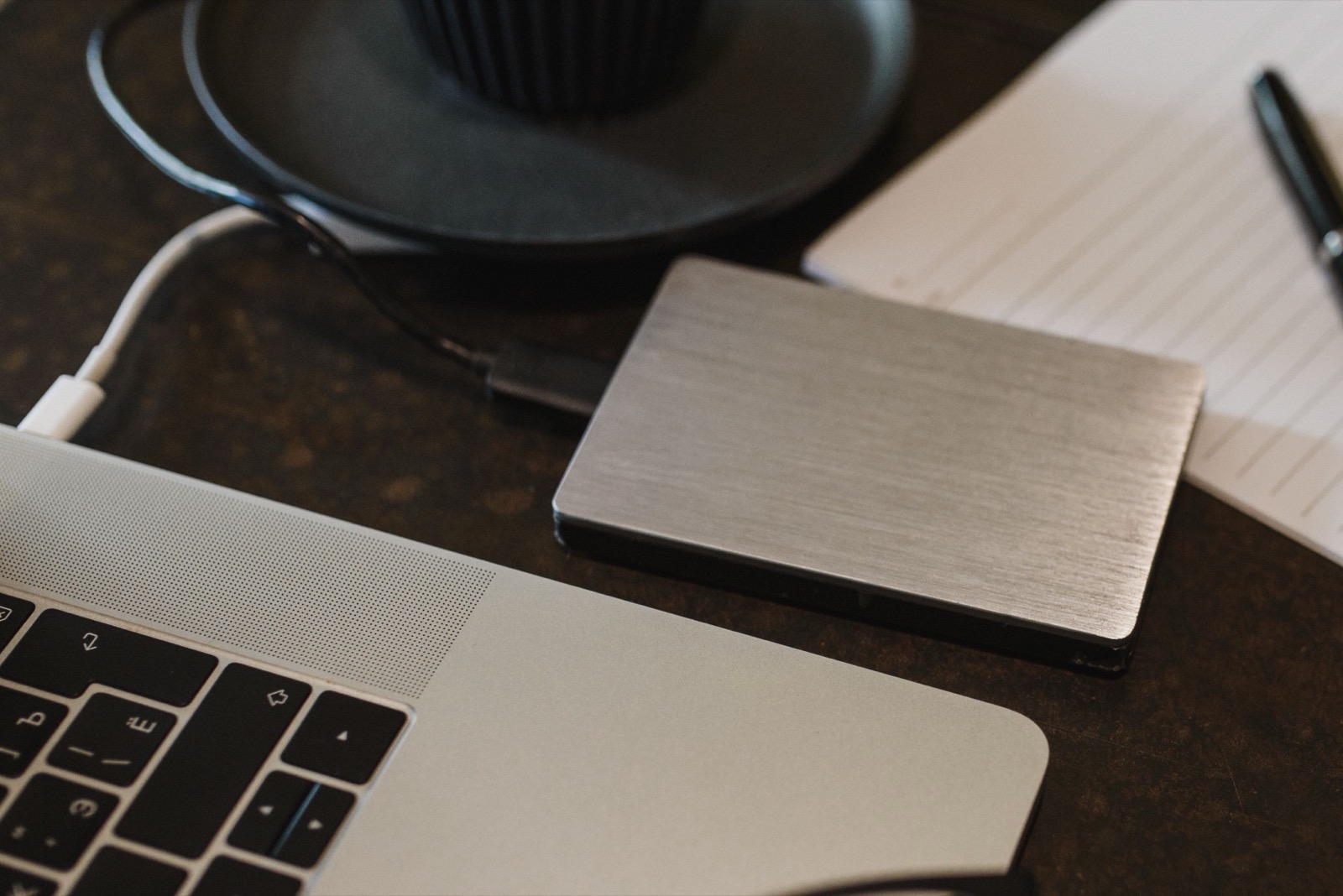
External Drive
A single drive you plug into a Mac. Cheapest, simplest, and the one most families already own.
NAS Device
A small box on your home network holding several drives, usually set up redundantly so no single drive failing takes everything with it.
Cloud Storage
Someone else's servers, reachable from anywhere, paid for on a recurring basis for as long as you want access.
None of the three is the premium choice. A NAS trades money and setup time for redundancy. Cloud trades a recurring bill, and someone else holding your files, for access from any device.
Cost, complexity, and failure mode
The last two rows matter most a few years in: what happens when a drive fails, and what happens if the company behind a service changes course.
| What matters | External Drive | NAS Device | Cloud Storage |
|---|---|---|---|
| Upfront cost | Lowest: one drive, one purchase | Higher: the device plus multiple drives | Usually $0 to start |
| Ongoing cost | None, until you need more capacity | None beyond occasional drive replacement | A recurring subscription that tends to rise as your library grows |
| Setup | Plug it in. Minutes. | Network configuration, a redundancy scheme, drive formatting. An afternoon or more. | An account and an upload. Quick to start, slow to finish for a large archive on a home connection. |
| Access | One device at a time, physically connected | Everyone on the home network, and remotely with extra setup | Any device, anywhere with internet |
| If the drive or device fails | Single point of failure: everything on it can be gone | One drive failing typically loses nothing, though the box itself can still fail | Redundancy is the provider's problem, as is everything else about how it's run |
| If the company changes pricing or shuts down | Not applicable, you own the hardware | Not applicable, you own the hardware | Real risk: a price hike, a shrinking free tier, or a shutdown can force a scramble to export before a deadline |
The case for a plain external drive
A single external drive is the cheapest way to get twenty years of photos off scattered devices and into one place, and for many families "one place" is the milestone that matters. It needs no configuration or account. The limitation is the one in the table: drives fail, especially ones that get moved around, dropped, or left running for years. A plain external drive is a good primary copy and a bad only copy.
The case for a NAS
A consumer NAS earns its cost and setup time with redundancy that doesn't depend on you remembering anything. With drives in a redundant array, one drive failing doesn't cost you your photos: you replace it and the array rebuilds. It also solves a problem in most multi-person archives, which is that several people need access from several devices without passing a drive around.
The tradeoff is effort and money. Choosing the drives and redundancy level and doing the initial setup is not a ten-minute job. For one person who wants photos in one folder, it's more machine than the job needs. For a family where several people reach the same archive on their own schedules, it starts to look like the right tool.
The case for cloud storage
Cloud's advantage is access: your photos are reachable from any device with an internet connection, with no cable and no coordination with whoever holds a drive. For a family spread across different cities, that matters.
The drawback is that it's recurring indefinitely and someone else holds your files. The bill rises as an archive outgrows the free allowance, and your access runs through one company's app, pricing, and account recovery. That is a reason not to make cloud your only copy.
Which one should you pick?
Most families that get this right combine at least two options, because the three fail in different ways. A drive failing doesn't take down a cloud account. A cloud pricing change doesn't touch a NAS in a closet. A fire that takes a drive and a NAS in the same room doesn't touch an offsite copy.
That combination is the 3-2-1 rule, covered in our backup guide: three copies, two kinds of media, one offsite. Choose your primary (a drive or NAS, most commonly), then read that section to turn a storage choice into a backup plan. Pick a combination of failure modes you can live with.
FAQ
Is an external drive enough on its own?
No. A single drive is the cheapest and simplest place to keep an archive, but one failure, drop, or theft loses everything on it. It's a fine primary copy and should never be the only copy.
Is a NAS worth it for a family photo archive?
If more than one person needs access, or you want redundancy without thinking about it, yes. The tradeoff is setup time and a higher cost than one drive.
What's the risk of relying only on cloud storage?
The cost tends to rise as your library grows past a free allowance, and your access to decades of photos runs through one company's app, pricing, and account recovery. It's a problem only if cloud is your sole copy.
Can I use more than one of these at once?
Yes, and most families that get this right do. A NAS or primary drive as the working copy plus cloud as an offsite backup is the 3-2-1 rule in practice.
Do I need a NAS if I already have a cloud backup?
Not necessarily. A NAS gives fast local access and protection from a single drive failing; cloud gives an offsite copy that survives a fire or theft at home. If cloud is your only copy anywhere, add a local drive.